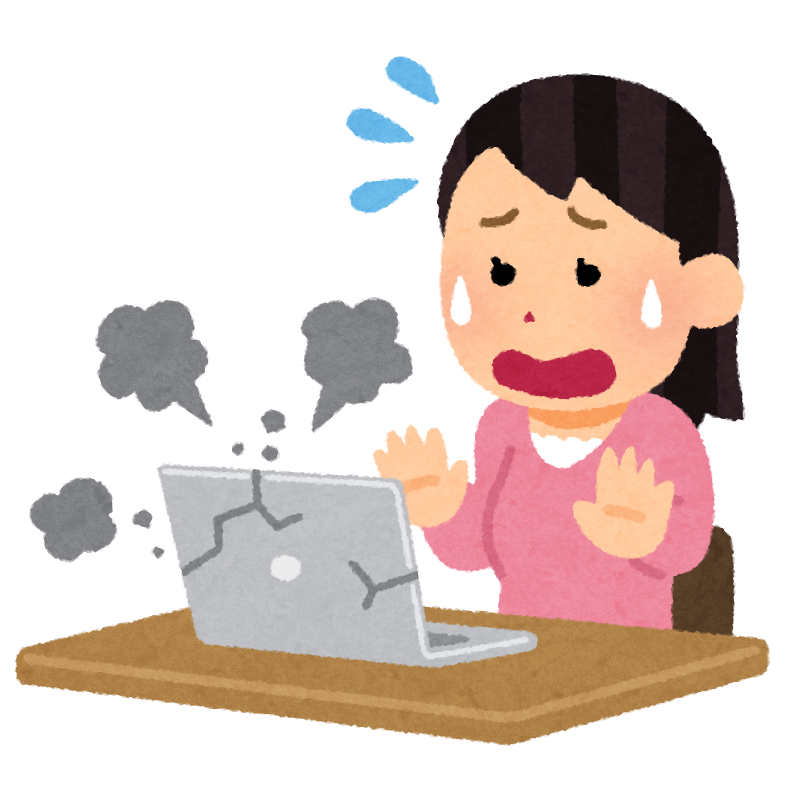
When you boot up your computer and the fan starts spinning at full blast, you might worry that the machine has broken. When a computer suddenly starts behaving strangely, it’s easy to feel there’s nothing you can do, but many problems can actually be fixed on your own.
That said, you do this at your own risk, so be extremely careful, and if you know someone knowledgeable, it’s a good idea to work on it together.
Computers aren’t cheap, after all.
This time, based on my own experience, I’ll describe what to do when the fan spins at full speed on startup and doesn’t calm down even a while after Windows has booted.
Symptoms
I had left my desktop computer on overnight, and when I noticed it in the morning, I could hear the fan running at full speed.
I shut the computer down once, but the fan kept spinning, so I switched off the power supply and unplugged the power cord.
I pressed the power button several times to discharge the residual power and then booted up again, but the fan was still running at full speed.
Other than a slow startup, though, there were no other apparent problems.
The fix
I checked the CPU temperature in the BIOS setup screen, but even at its highest it was only around 30 °C, so there was no problem there.
I set the PC to power-saving mode in the BIOS, but nothing changed.
I also lowered the minimum fan speed, but again nothing changed.
I unplugged every cable connected to the computer, including the power and USB cables, pressed the power button several times to discharge it, and then opened up the case.
I removed the coin cell battery and pressed the power button several times (a CMOS clear).
[There are other ways to clear the CMOS. It’s also a good idea to disconnect the cables from the power supply to the motherboard at this point.]
Clearing the CMOS is a way of resetting the motherboard’s BIOS: after removing the coin cell battery, you drain the electricity remaining in the motherboard.
I put the coin cell battery back in, reconnected the keyboard, power, and video cables, and turned the computer on.
The fan speed was back to normal.
Just to be safe, I also updated the BIOS.
For now, everything is running normally.
Cause
The direct cause appears to have been a BIOS error.
Something odd must have happened, resulting in the fan running at full speed.
BIOS errors can often be fixed by clearing the CMOS, so whenever you suspect a BIOS error is the culprit, resetting the BIOS with a CMOS clear will frequently solve the problem.
BIOS errors can be caused by leaving the computer powered on for long periods, dust building up inside the case, shutting the machine down abruptly at a bad moment, or installing sketchy software.
Dust buildup inside the case is especially common, so cleaning the inside of your computer with compressed air about once a year can help prevent it.
I finished by updating the BIOS this time. A reset alone is probably sufficient, but updating may also clear out underlying errors.
It’s the same idea as a camera that won’t power on starting up again after a firmware update.
Being able to fix computer problems yourself is a genuinely valuable skill, since it saves on repair costs.
Also, when it comes to errors like a computer that won’t boot, there are surprisingly few things you can do short of replacing parts, so it’s worth looking into the other options first.
Bonus
I’ve started offering consultations on computer problems through Coconala!
パソコンが動かなくなった時の対処法を提案します パソコンが突然動かなくなった駆け込み寺としてI’ve worked with all sorts of computers and seen all sorts of trouble.
My Coconala listing says “when your computer stops working,” but I’m happy to take on any kind of problem you might run into while using a computer.
I’ve only just started using Coconala, so I may still be getting the hang of it, but please do reach out if you run into computer trouble.
I use both Mac and Windows, so I can help with issues on either platform.