![How to Install DeepLabCut 2.3 [Updated December 2023]](https://www.stg.tankobucreate.com/wp-content/uploads/2021/03/DLC_logo_blk_wide-01.png)
In this post, I’ll walk through how to install DeepLabCut.
Reference sites
・Japanese-language sites
https://qiita.com/auditorycortex/items/1b3a55101cddf09553b2
↑Very clear. Following this should get you through just fine.
https://note.com/sakulab/n/n9caeb32d74d6
↑Includes screenshots
・DeepLabCut homepage
・GitHub
Installation
Environment
・Windows 10
・Verified on NVIDIA 2060 SUPER, NVIDIA 1080 Ti, and NVIDIA 3080
(did not work on NVIDIA 1060 SUPER)
・DeepLabCut 2.1
・NVIDIA Driver, latest version
・Anaconda3
・Python 3.8
・CUDA 11.8
・tensorflow-gpu 2.5
Steps
First, download the master files from the GitHub page.
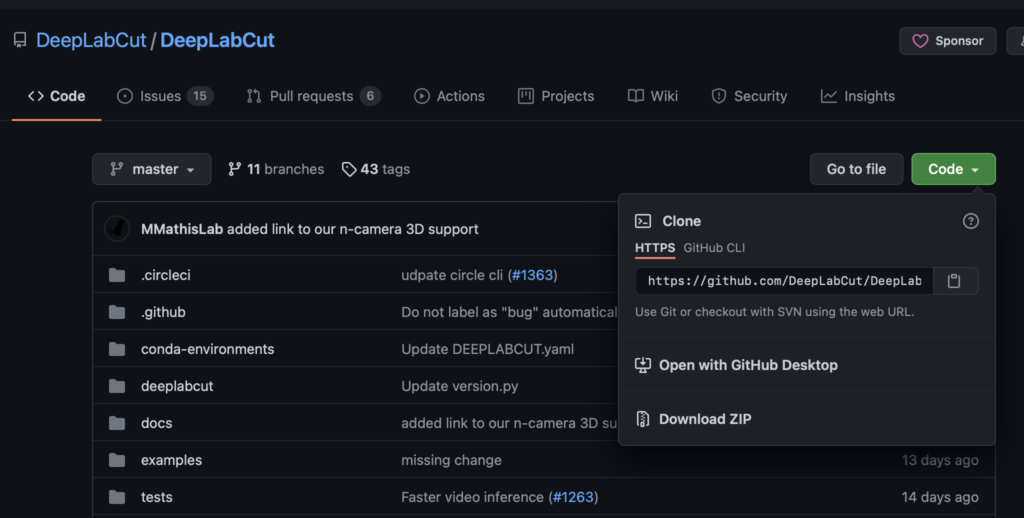
You can download them via “Download ZIP” under Code.
Next, download and install the Windows 10 64-bit version from the Anaconda website.
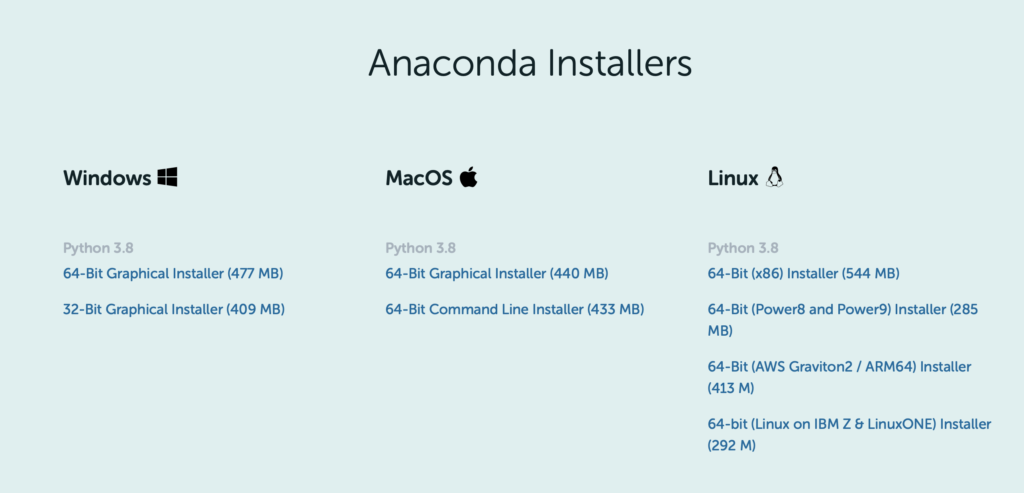
Install the NVIDIA driver. (Skip this step if it is already installed.)
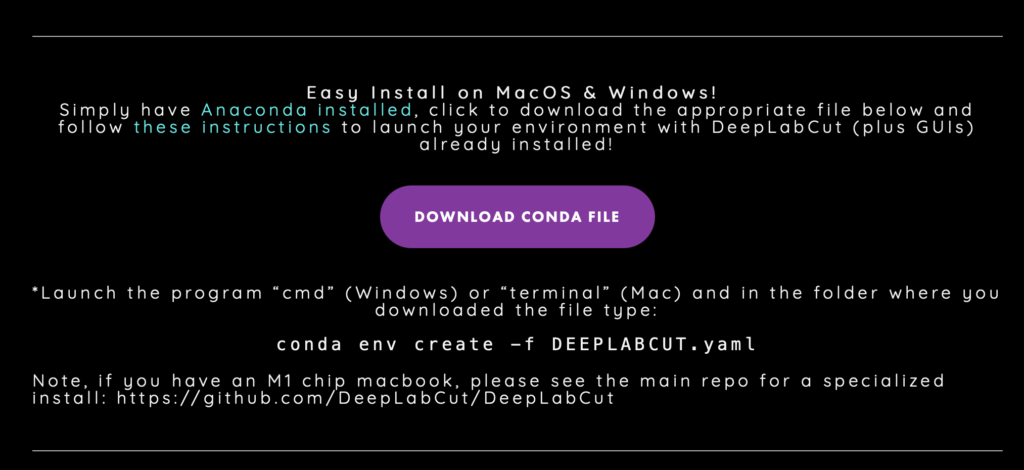
Scroll down on the DeepLabCut website, click “DOWNLOAS CONDA FILE” on the right,
and download DEEPLABCUT.yaml.
Create a DeepLabCut folder somewhere on your PC (the Desktop or a directory on the C drive is recommended), and make an “environment” folder inside it.
Then place the DEEPLABCUT.yaml file you just downloaded into that folder.
This is just personal preference, but I like to keep environment files in one fixed location, so this is how I do it.
Launch Anaconda Prompt as an administrator. (A terminal-like window full of white text on black, similar to Command Prompt, will appear.)
Anaconda Prompt is installed together with Anaconda, so you should be able to find it in your list of installed programs.
Now build a virtual environment using the DEEPLABCUT.yaml file you downloaded.
In Anaconda Prompt, enter
conda env create -f C:(DLC-GPU.yamlファイルの場所)DEEPLABCUT.yamlYou can check the location of the DEEPLABCUT.yaml file from the file’s properties, so look it up there and enter it.
When you run this command, various components will be downloaded.
After that, activate the virtual environment you created.
conda activate DEEPLABCUTThe prompt should change from (base) to (DEEPLABCUT).
If you get that far, you’re good for now.
Next, install CUDA and cuDNN.
conda install -c conda-forge cudnnThis will download suitable versions of the CUDA toolkit and cuDNN for you.
Then enter the following four commands to complete the installation.
pip install numpy
pip install deeplabcut
pip install imgaug
pip install torch
Update DeepLabCut, and the installation is complete.
pip install --upgrade deeplabcutOnce you’ve made it this far, try launching it.
conda activate DEEPLABCUT
python -m deeplabcut
Entering this will launch the DeepLabCut GUI.
What to do when DeepLabCut won’t run on the GPU
Sometimes you start training and think, “Huh? Isn’t this slow?”
That’s because DeepLabCut is running on the CPU when you intended it to run on the GPU.
A common cause is a version mismatch among CUDA, cuDNN, and tensorflow.
Packages like tensorflow keep getting updated to newer versions,
so things occasionally stop working.
For the latest version information, please check DeepLabCut’s GitHub.
That covers the installation process.
In upcoming posts, I plan to explain how to use it.
Bonus
For those who aren’t sure which computer to buy, I’ve started offering PC purchase consultations on Coconala!
あなたの要望に合わせてパソコンを選び、提案します パソコン選びに困っている方々へ!様々な目的に対応できます!I often pick out computers and give advice on them, and many friends have told me I could make money doing PC consultations.
That inspired me to give it a try!
I’ll recommend a purchase that fits how you plan to use the computer and your budget.
In particular, I’ve chosen and used a lot of computers for machine learning.
And if you’d like, I can also advise you on what to look for the next time you buy a computer.
Computers I’ve helped select include analysis machines for research labs, everyday-use PCs, PCs for game streaming, PCs for incoming university students, CAD-capable PCs for architecture students, and simple stopgap machines.
I use both Mac and Windows, so I can discuss and recommend either one!
Please feel free to make use of it.
Addendum 1
I’ve also written an article on how to install “SLEAP,” another behavior tracking tool like DeepLabCut.
SLEAP is every bit as capable as DeepLabCut, so please give it a try.